Everything You Need to Know About Outline Effects in Unreal Engine 5
Imagine you’re playing an action game and instantly recognize which objects you can interact with, even in a cluttered environment. Or picture a factory engineer exploring a digital twin with Unreal Engine where selecting a machine instantly highlights it with a glowing border. These seemingly small visual cues dramatically improve how users navigate and interact with virtual environments.
One of the most effective ways to create these visual cues is through outline effects.
In Unreal Engine 5 (UE5), outline effects are widely used across games, simulations, digital twins, VR applications, and enterprise visualization platforms to perform the following:
- Draw attention to objects
- Improve gameplay
- Enhance accessibility
- Create intuitive user experiences
Task may appear to be simple, but the right implementation matters. Despite their simplicity, outline effects involve several rendering techniques, materials, buffers, and optimization considerations. Choosing the right implementation depends on your project’s goals, target platform, and performance requirements.
In this guide, we’ll explore everything you need to know about outline effects in Unreal Engine 5. Understand how they work, common implementation methods, real-world use cases, performance optimization, best practices, and more!
- What Are Outline Effects in Unreal Engine 5?
- Why Outline Effects Matter
- Key Considerations Before Implementing Outline Effects
- Step-by-Step: How to Create an Outline Effect in Unreal Engine 5
- Performance Tips for Unreal Engine Outline Effects
- Common Challenges and How to Solve Them
- Outline Effects Beyond Games: Enterprise Use Cases
- The Future of Outline Effects in Unreal Engine
- Why Choose 300Mind for Unreal Engine Outline Effects?
- Frequently Asked Questions
What Are Outline Effects in Unreal Engine 5?
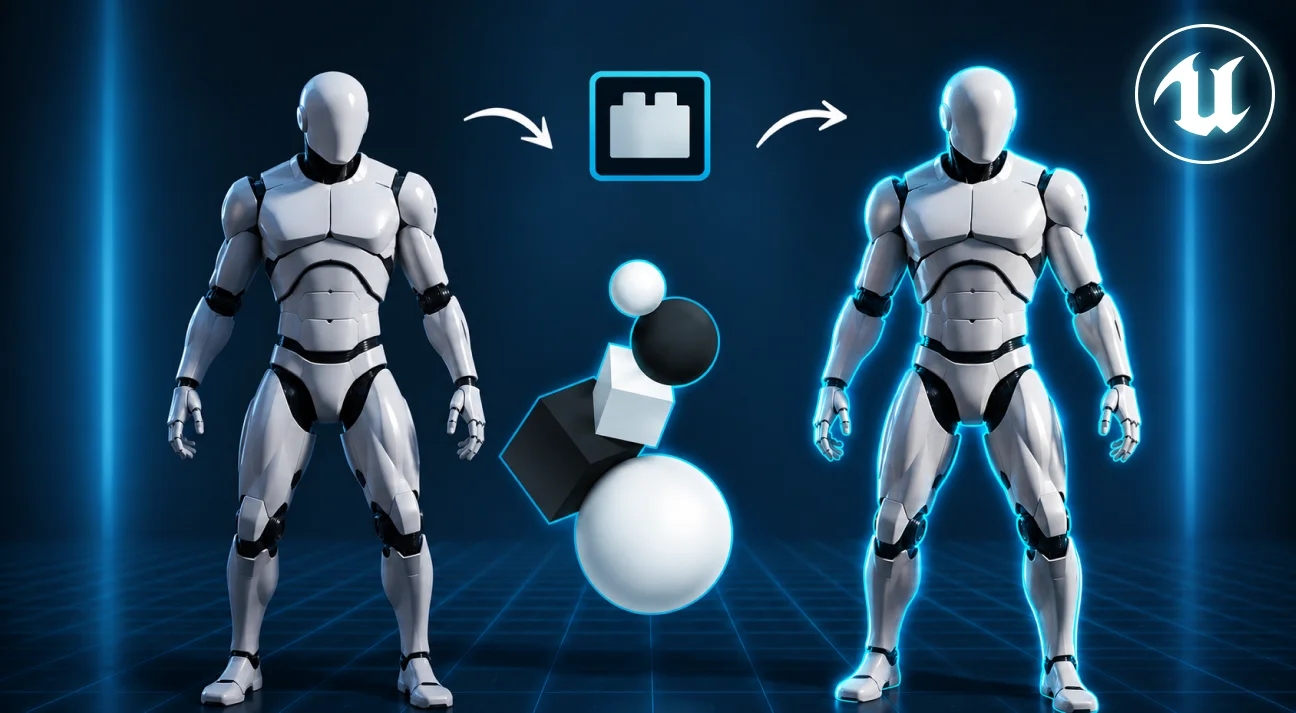
Outline effects are visual borders rendered around an object to make it stand out from its surroundings. Instead of changing the object’s appearance directly, Unreal Engine generates a separate outline that surrounds the mesh.
These outlines can appear as:
- Thin colored borders
- Thick cartoon-style outlines
- Animated glowing edges
- Pulsing highlights
- Multi-colored outlines for different object types
- X-ray outlines visible through walls
Unlike traditional UI indicators such as arrows or floating icons, outline effects integrate naturally into the 3D scene, making interactions feel more immersive.
You’ll commonly see outline effects used to indicate:
- Interactive objects
- Weapons and collectibles
- Enemy targets
- Friendly teammates
- Quest objectives
- Puzzle elements
- Selectable components
- Machinery in industrial simulations
Because they instantly guide a user’s attention, outline effects have become a standard feature across both gaming and enterprise Unreal Engine projects.
Why Outline Effects Matter
Research published in SN Computer Science found that motion and color cues were reliably detected within approximately 250 milliseconds in 3D game-like environments. The findings reinforce why outline effects are widely used to help players quickly identify important objects and interactions.
Good visual design isn’t just about making environments look realistic. It’s about helping users understand what they should pay attention to.
Without visual guidance, users often spend unnecessary time searching for interactive elements, especially in highly detailed scenes.
Outline effects solve this problem by making important objects immediately recognizable.
In Video Games
Throughout the Unreal Engine game development process, outline effects are implemented to improve gameplay, guide player interactions, and enhance the overall user experience. Modern games rely heavily on these effects without cluttering the screen with interface elements.
Some common examples include:
Highlighting Loot
After defeating enemies, valuable weapons or resources often receive glowing outlines so players can quickly locate them.
Interactive Objects
Doors, switches, levers, treasure chests, terminals, and NPCs frequently display outlines when players approach them.
Enemy Detection
Competitive games often use colored outlines to distinguish enemies from teammates or identify high-priority targets.
Puzzle Mechanics
Puzzle games use outlines to subtly indicate objects players can manipulate without explicitly telling them the solution.
Stealth Gameplay
Certain games temporarily reveal enemies behind obstacles using outline effects during special abilities or detection mechanics.
In Enterprise Applications
Outline effects aren’t limited to entertainment.
Many businesses use Unreal Engine for immersive visualization, and object highlighting plays a significant role in improving user interactions.
Examples include:
Digital Twins
With a digital twin solution, operators can instantly identify machines, equipment, sensors, or production lines during inspections.
Product Configurators
Customers selecting different vehicle parts or furniture components receive immediate visual confirmation.
Architecture Walkthroughs
Potential buyers can highlight apartments, rooms, or structural components while exploring a virtual property.
Medical Visualization
Doctors and students can isolate organs, bones, or anatomical structures for easier learning.
Manufacturing
Workers undergoing training can identify tools or machine components with guided highlighting.
These subtle visual improvements reduce confusion and create far more intuitive experiences.
Key Considerations Before Implementing Outline Effects
Before choosing an outline technique, evaluate your project’s visual style, target platform, and performance requirements. The right approach balances aesthetics, functionality, and rendering efficiency.
1. Visual Style
The right technique should complement your game’s art direction. While post-process outlines work well for realistic games and simulations, mesh-based approaches can create bold, consistent outlines that are often used in cel-shaded or stylized titles.
2. Gameplay or Interaction Requirements
Consider how outline effects will be used. Highlighting interactive objects, enemies, objectives, or assets may require different behaviors, colors, or activation logic.
3. Target Platform
Your implementation should align with the capabilities of your target platform, whether you’re developing for PC, console, mobile, VR, or enterprise applications.
4. Development Complexity
Simple outline systems can often be built using Blueprints, while advanced gameplay interactions or enterprise applications may require C++ for greater flexibility and control.
5. Scalability
If your project contains numerous interactive objects or dynamic environments, choose an approach that supports efficient rendering, easy maintenance, and future expansion.
Step-by-Step: How to Create an Outline Effect in Unreal Engine 5
If you’re new to Unreal Engine 5, creating a basic outline effect may seem intimidating. However, Unreal Engine already provides most of the building blocks you need. By combining Custom Depth, Custom Stencil, and a Post Process Material, you can create an efficient object highlighting system without modifying the original mesh.
The exact workflow may vary depending on your project, but the following steps cover the most common implementation.
Step 1: Enable Custom Depth
The first step is to tell Unreal Engine which objects should be eligible for outlining.
- Select the object (Static Mesh or Skeletal Mesh).
- In the Details panel, locate the Rendering section.
- Enable Render Custom Depth Pass.
Once enabled, Unreal Engine stores that object’s depth information in the Custom Depth Buffer, making it available to post-processing materials.
Tip: Don’t enable Custom Depth for every object in your scene. Activate it only for objects that users can interact with or that require visual emphasis.
Step 2: Assign a Custom Stencil Value (Optional)
If you only need one outline color, you can skip this step.
However, if different objects require different outline colors, assign each one a unique stencil value.
For example:
| Object Type | Stencil Value |
| Enemy | 1 |
| Ally | 2 |
| Objective | 3 |
| Loot | 4 |
| Machinery | 5 |
The Post Process Material can read these values and apply different colors automatically.
This approach is much more scalable than creating separate materials for every object category.
Step 3: Create a Post Process Material
Now create a new Material and configure it as follows:
- Material Domain: Post Process
- Blendable Location: After Tonemapping (or as required)
- Read the SceneTexture node for Custom Depth.
- Compare neighboring pixels to detect object edges.
- Apply your desired outline color and thickness.
This material becomes responsible for drawing the outline around the selected objects.
Step 4: Add a Post Process Volume
To apply the effect throughout the level:
- Drag a Post Process Volume into your scene.
- Enable Infinite Extent (Unbound) if you want the effect across the entire level.
- Under Rendering Features, add your Post Process Material.
The outline effect is now available globally.
Step 5: Enable the Effect Dynamically
Most projects don’t keep outlines active all the time.
Instead, they activate outlines only when needed.
Common triggers include:
- Player approaches an object
- Mouse cursor hovers over an object
- Object becomes selected
- Quest starts
- VR controller points toward an asset
- Machine requires maintenance
Using Blueprints or C++, developers can simply enable or disable Render Custom Depth during gameplay.
This keeps the scene cleaner and improves rendering performance.
Step 6: Fine-Tune the Visuals
Once the system is working, adjust its appearance based on your project’s art direction.
Common parameters include:
- Outline color
- Thickness
- Glow intensity
- Transparency
- Edge softness
- Animation speed
- Pulsing effects
- Visibility through walls
Small adjustments often make a significant difference in how natural the outline feels.
For projects requiring advanced customization or platform-specific optimization, many businesses prefer to hire Unreal developers who can implement and fine-tune these effects while maintaining performance across PC, console, mobile, and XR devices.
Performance Tips for Unreal Engine Outline Effects
One of the biggest misconceptions about outline effects is that they have almost no performance cost. While a few highlighted objects generally have a minimal impact, performance can degrade if outline systems aren’t designed carefully.
Several factors influence the rendering cost:
- Number of outlined objects
- Outline rendering method
- Material complexity
- Screen resolution
- Target platform (PC, console, mobile, VR)
Understanding these factors helps developers build scalable systems from the beginning.
1. Limit the Number of Active Outlines
A common mistake is enabling Custom Depth on every interactive object in a scene.
Instead, enable it only when necessary.
For example:
- When the player is within interaction range
- When an object is selected
- During quest activation
- While hovering over an object
Dynamic activation significantly reduces unnecessary rendering work.
2. Keep Post-Process Materials Efficient
Complex post-process materials can quickly become expensive.
Avoid unnecessary:
- Texture sampling
- Large blur kernels
- Multiple edge detection passes
- Excessive mathematical calculations
Whenever possible, keep the shader focused solely on detecting edges and applying the outline.
3. Avoid Outlining Everything
More outlines don’t necessarily create a better user experience.
If dozens of objects are highlighted simultaneously, users struggle to identify what’s actually important.
Instead:
- Prioritize the nearest object.
- Highlight only mission-critical items.
- Disable inactive interactions.
- Use different visual intensities for primary and secondary objects.
A clean interface almost always performs better than a crowded one.
4. Optimize for VR
Virtual Reality places much higher demands on rendering performance because every frame is rendered twice, once for each eye.
For VR applications:
- Keep outline shaders lightweight.
- Avoid excessive glow effects.
- Limit animated outlines.
- Test on standalone headsets if applicable.
- Maintain stable frame rates to reduce motion sickness.
Small shader optimizations can have a noticeable impact on VR performance.
5. Consider Mobile Hardware
Although Unreal Engine supports mobile development, not every outline technique performs well on smartphones or tablets. Developers building Unreal Engine for mobile game development need to carefully balance visual quality with performance.
For mobile projects:
- Reduce outline thickness.
- Minimize shader complexity.
- Limit simultaneous outlined objects.
- Avoid multiple post-processing passes.
- Test across different GPU architectures.
Choosing a simpler implementation often delivers a smoother user experience than pursuing high-end visual effects.
Common Challenges and How to Solve Them
Even experienced Unreal Engine developers encounter issues while implementing outline effects. Fortunately, most problems have well-established solutions.
| Challenge | Possible Cause | Recommended Solution |
| Outline doesn’t appear | Custom Depth disabled | Enable Render Custom Depth on the mesh and verify the post-process volume is active. |
| Jagged or noisy edges | Anti-aliasing conflicts | Adjust Temporal Anti-Aliasing (TAA) settings or refine the edge detection logic. |
| Outline flickers | Depth precision issues | Apply a small depth bias and fine-tune the shader to reduce z-fighting. |
| Performance drops | Too many outlined actors | Activate outlines dynamically and avoid outlining every interactive object at once. |
| Incorrect outline color | Stencil values overlap | Assign unique Custom Stencil values and keep them documented across the project. |
| Outline visible on unintended objects | Shared settings | Verify which meshes have Render Custom Depth enabled and audit blueprint logic. |
Most outline-related issues stem from configuration rather than rendering limitations, making them relatively straightforward to troubleshoot.
Outline Effects Beyond Games: Enterprise Use Cases
Although games popularized outline effects, many industries now rely on them to improve interaction and reduce cognitive load.
Here are a few examples:
Manufacturing
Guide technicians during maintenance by highlighting the next component to inspect or replace.
Digital Twins
Show the operational status of equipment through color-coded outlines, making it easier to monitor complex industrial environments.
Automotive
Allow customers to explore vehicle configurations by highlighting selected components in real time.
Healthcare
Improve anatomy education and surgical planning by isolating specific organs or structures.
Retail
Enhance product configurators by clearly indicating customizable parts and selected options.
As Unreal Engine adoption continues to grow beyond gaming, outline effects are becoming a standard interaction pattern across immersive enterprise solutions.
The Future of Outline Effects in Unreal Engine
As Unreal Engine continues to evolve, outline effects are becoming more dynamic, customizable, and integral to real-time experiences. Here are some emerging trends shaping their future.
Context-Aware Highlighting
Objects will automatically adjust their highlighting based on player behavior, AI predictions, or workflow priorities.
AI-Assisted Interaction
Instead of manually tagging every object, AI may identify important scene elements and trigger highlights dynamically.
Procedural Visual Feedback
Outline appearance could adapt based on gameplay state, object condition, or environmental changes without requiring handcrafted logic.
Smarter Enterprise Interfaces
Future digital twins and industrial simulations may combine outline effects with real-time IoT data, making equipment status instantly recognizable through intelligent visual cues.
Why Choose 300Mind for Unreal Engine Outline Effects?
Implementing outline effects that look great, perform well, and fit your game’s art direction requires an expert Unreal Engine solution partner. Our team at 300Mind has real production experience with Unreal Engine’s rendering pipeline. Here’s why studios and businesses choose 300Mind:
- Deep Unreal Engine expertise: We build high-performance outline effects using Custom Depth, Custom Stencil, and Post Process Materials for games and real-time 3D applications.
- Creators of the Advanced Outline System plugin: Our team developed the Advanced Outline System plugin for the Fab Marketplace, showcasing our expertise in building reusable, production-quality Unreal Engine tools.
- Tailored implementation: From realistic object highlighting to stylized outline effects, we adapt every implementation to your project’s visual style and gameplay requirements.
- Performance-first implementation: Our team optimizes outline systems for PC, console, mobile, and VR without compromising frame rates.
- End-to-end Unreal Engine development: From gameplay systems and shaders to VFX and final polish, we support your entire development journey.
Whether you need subtle interaction highlights or advanced multi-color outline systems for complex real-time environments, our team can help you build intuitive, high-performance Unreal Engine experiences that engage users and support your business goals.
Frequently Asked Questions
Explore answers to common questions about outline effects, from implementation techniques to performance optimization in Unreal Engine 5.
For most projects, a post-process material combined with Custom Depth and Custom Stencil provides the best balance of flexibility, visual quality, and performance.
Yes. By assigning different Custom Stencil values to objects, you can render multiple outline colors using a single post-process material.
They do, but the impact is generally modest when implemented correctly. Limiting active outlined objects, optimizing post-process materials, and enabling outlines only when needed help maintain good performance.
Absolutely. They’re commonly used in VR training, product visualization, and industrial simulations to indicate interactive objects and guide user actions. Because VR has stricter performance requirements, lightweight implementations are recommended.
Yes. Industries such as manufacturing, automotive, healthcare, architecture, and retail use outline effects to simplify interactions, improve workflows, and enhance visualization experiences.