How to Add a Drag-and-Drop Transform Gizmo to Unreal Engine 5 at Runtime
If you’ve ever needed a player-facing level editor, an in-game furniture placement system, or an ArchViz build that lets clients rearrange a scene in a packaged build you’ve run into the same wall we did: Unreal’s transform gizmo is an editor-only tool. The moment you hit Play, it’s gone. So we built our own that isn’t.
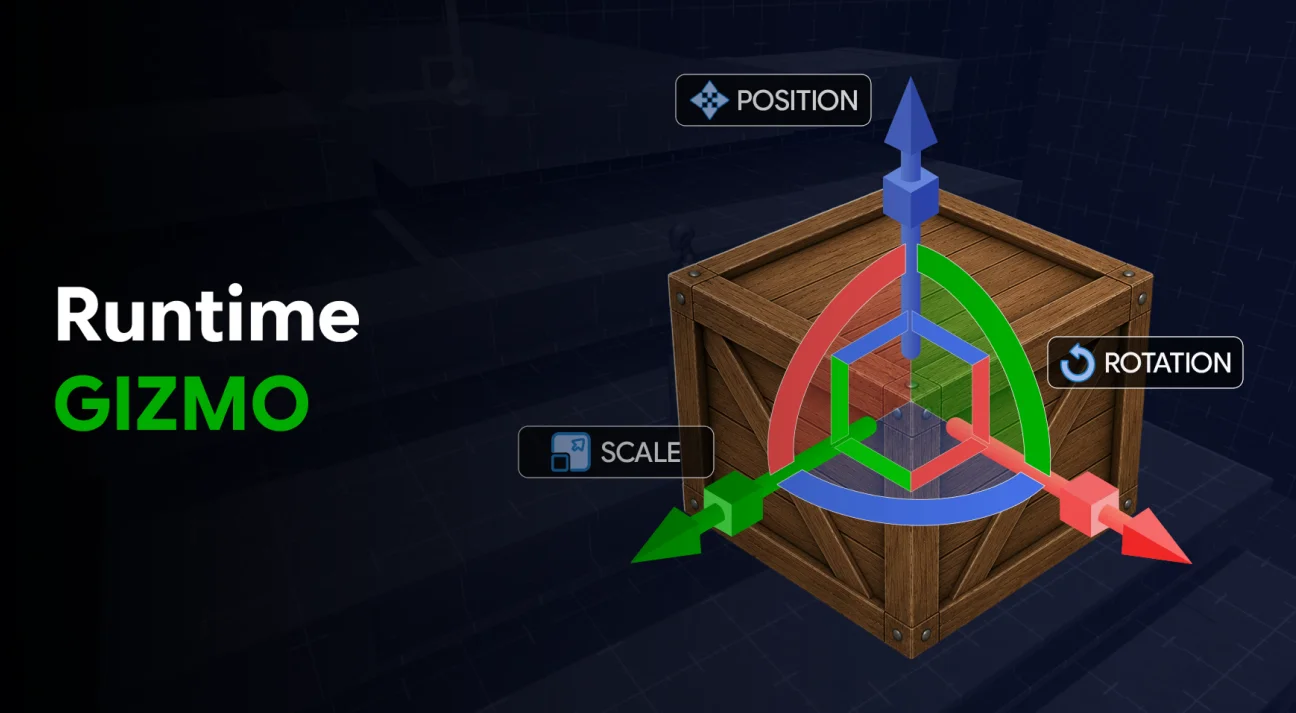
The Runtime Gizmo Tool is a Blueprint-integrated plugin for UE5 that recreates that familiar editor-style move/rotate/scale gizmo, but it works in Play-in-Editor, standalone, and fully packaged builds. No editor source access, no faking it with widget hacks just a component you add to your Pawn and a set of functions you call.
What It Actually Does
At its core, the plugin exposes a Runtime Gizmo Component that handles selection, transformation, and everything around it. Once it’s on your Pawn, you get:
- Translation, rotation, and scaling of actors or components, mid-gameplay
- Axis-based manipulation grab a single axis for precise control, just like the editor gizmo
- World space and Local space switching, changeable at runtime
- Multi-selection, so players can grab and move several objects as a group
- Cloning duplicate a selected object on the fly
- Value-based snapping, plus one-click snap-to-ground for selected objects
Getting It Running
Setup is very easy! Simply install the plugin from FAB, open Edit → Plugins, enable Runtime Gizmo, and restart the Unreal Editor.

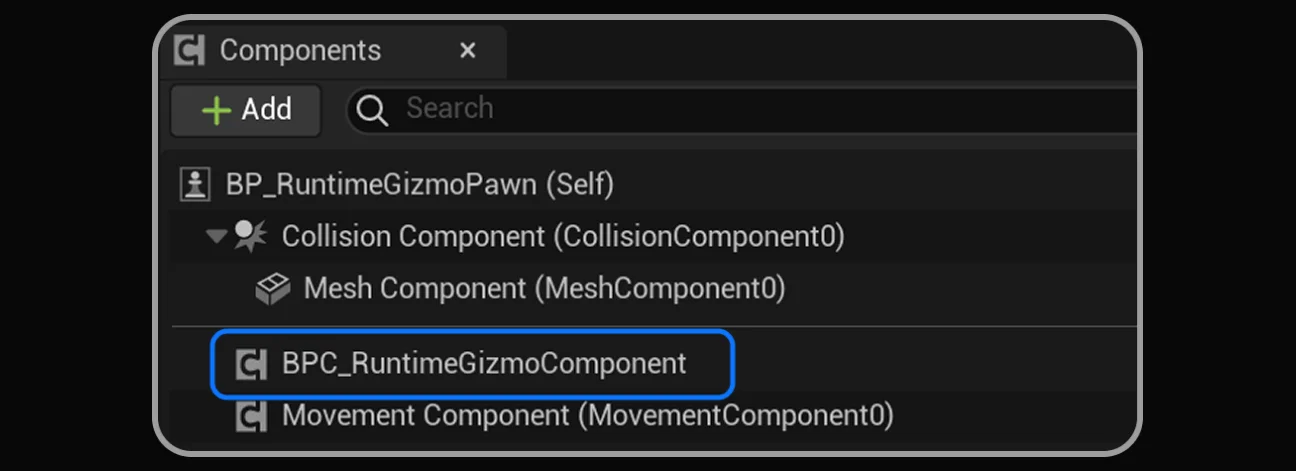
From there, the one required step is adding the Runtime Gizmo Component to your Player Pawn (or Player Controller) everything else builds on top of that component.
Wiring Up Input It’s Just Two Function Calls
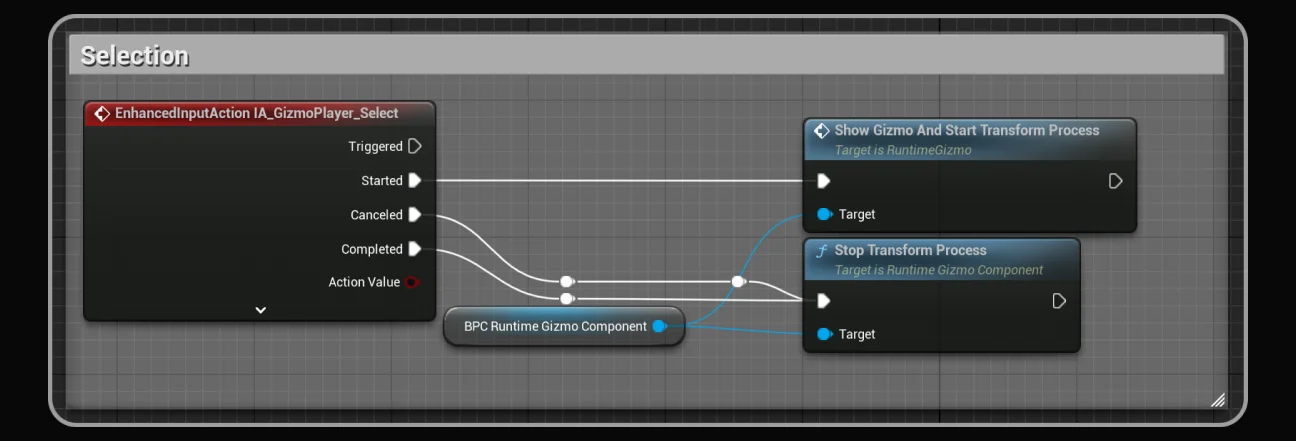
This is where the plugin gets out of your way. Selecting and transforming an object comes down to two functions: Show Gizmo and Start Transform Process on interaction start (mouse press, or whatever input you choose), and Stop Transform Process on release. That’s the entire selection loop.
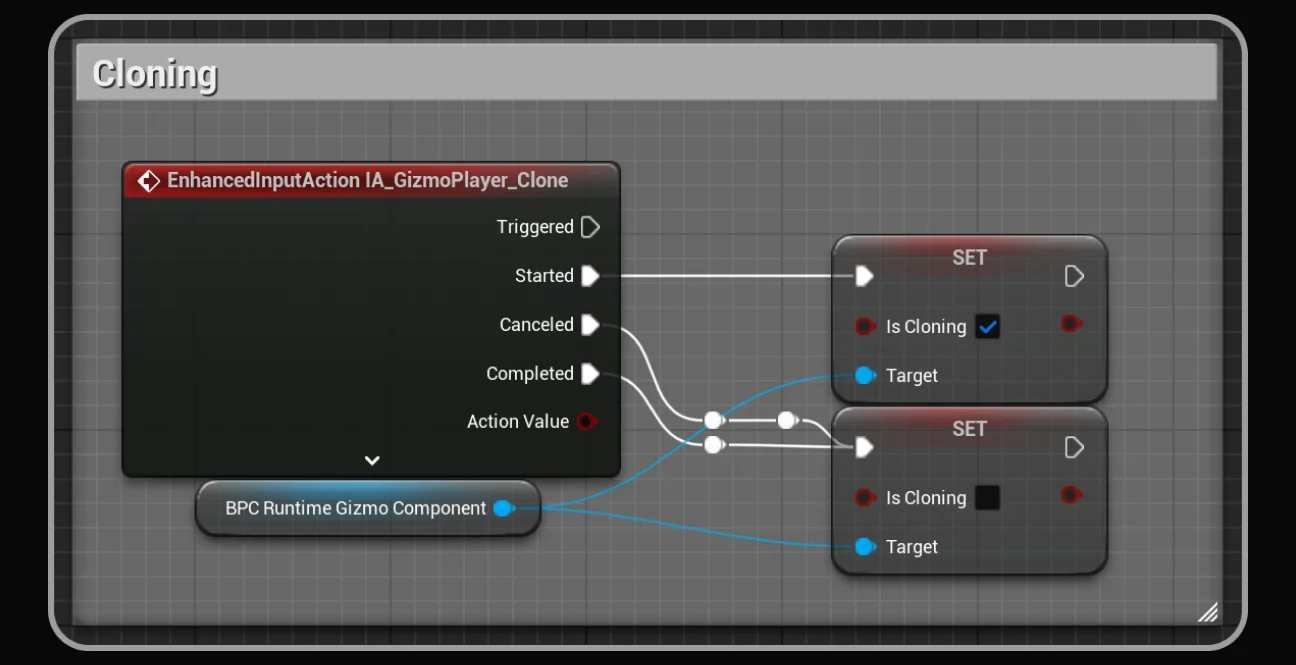
We built every optional feature the same way expose a single Blueprint variable or function call, and let the input binding be entirely up to you. Cloning, for instance, is just a boolean: set bIsCloning to true on the component to start duplicating the current selection, false to stop.
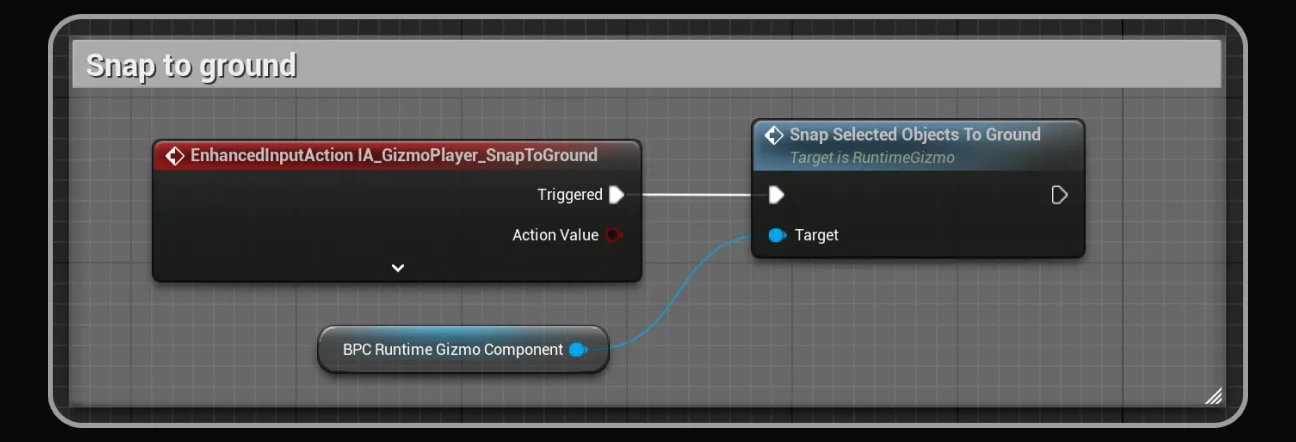
Snap-to-ground works the same way one function call, Snap Selected Objects to Ground, fired from whatever key or UI button you want.
Filtering What Can Be Selected
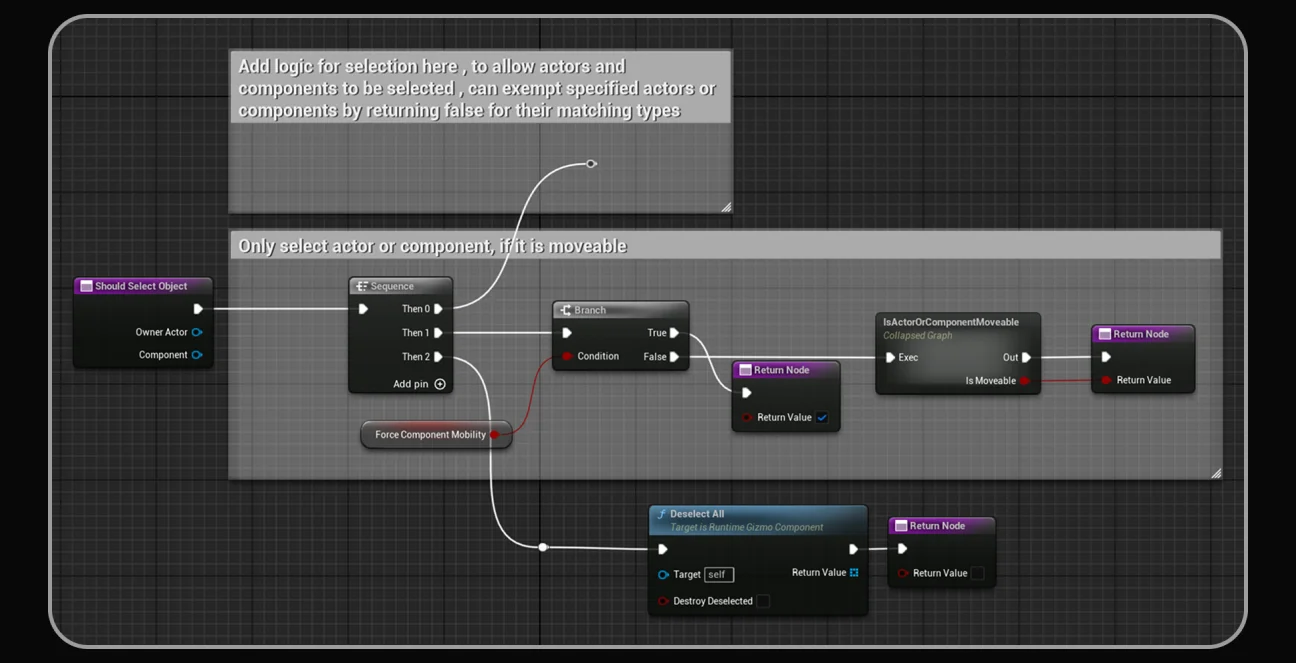
Not every actor in your level should be grabbable you don’t want players picking up your level geometry or a trigger volume by accident. That’s what the Should Select Object override is for. It’s called for every potential selection, and you return true or false to decide whether that actor or component is eligible.
In the demo project, we used it to gate selection behind a Movable mobility check only actors explicitly set to Movable can be picked up, which is a pattern you’ll probably want to keep or adapt.
Reacting to Selection Two Ways In
When something gets selected or deselected, you’ll usually want to do something about it: highlight it, pop a UI element, play a sound. The plugin gives you two hooks for that.
- On Selection Change an event on the Runtime Gizmo Component itself, useful as a catch-all for actors that don’t implement any special interface.
- Gizmo Focus Interface implement this directly on an actor and it handles its own focus behavior (highlight, material swap, sound) without routing through the component at all.
We’d lean toward the interface approach for anything with per-actor visual feedback it keeps the logic with the actor instead of centralizing it in one enormous switch statement on the Pawn.
The Component Settings That Actually Matter
A handful of properties on the Runtime Gizmo Component control the overall feel, and they’re worth understanding before you ship:
- Current Transform Space Type World or Local space, switchable at runtime.
- Gizmo Placement On First Selection or On Last Selection, controlling where the gizmo appears when multiple objects are selected.
- Force Component Mobility if true, non-Movable components get force-switched to Movable so they can be transformed. Worth flagging: the original mobility setting is not restored afterward, so use this deliberately, not as a default-on convenience.
- Use Complex Trace complex collision tracing for precise selection of small or tightly packed objects, at some performance cost over simple tracing.

You Don’t Have to Build the Reference Project Yourself
The plugin ships with a full working demo a configured Player Pawn with all input already bound, a ready-to-use UI for mode switching and snapping, and a BP_InfoActor that documents every exposed function in place. If you want to see the whole system working end-to-end before wiring it into your own project, this is the fastest way in.
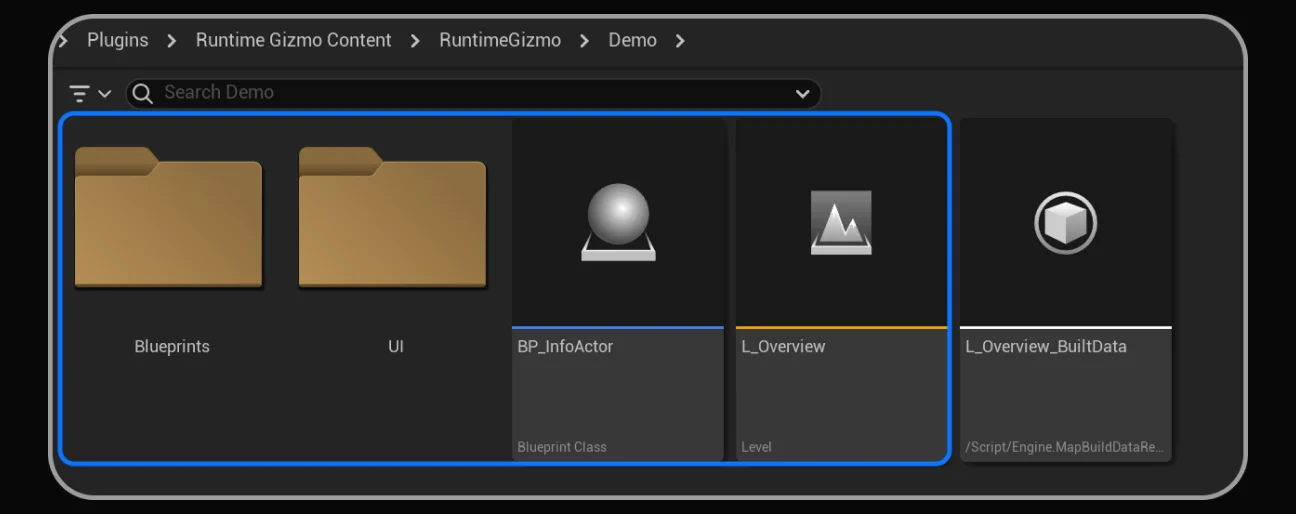
One thing worth calling out clearly: the Runtime Gizmo does not handle input automatically. It’s a component, not a full player controller replacement you either use the included Demo Player Pawn as a starting point, or wire the functions above into your own Pawn or Controller. That’s a deliberate choice on our part; we didn’t want to force our input scheme onto your project.
Why We Built It as a Component, Not a Framework
A lot of runtime-editing tools on the marketplace hand you an entire player controller and ask you to build around it. We went the other way: the Runtime Gizmo is one component, with clearly scoped functions and overrides, that you attach to whatever Pawn setup you already have. It costs a little more setup time upfront you do need to wire your own input but it means the plugin fits into an existing project instead of asking you to restructure one around it.
Get It
The Runtime gizmo live now on Fab.
Building for Unreal Engine specifically? This one’s Fab-only for now. For our Blender and Unity tools, check out our full catalog: