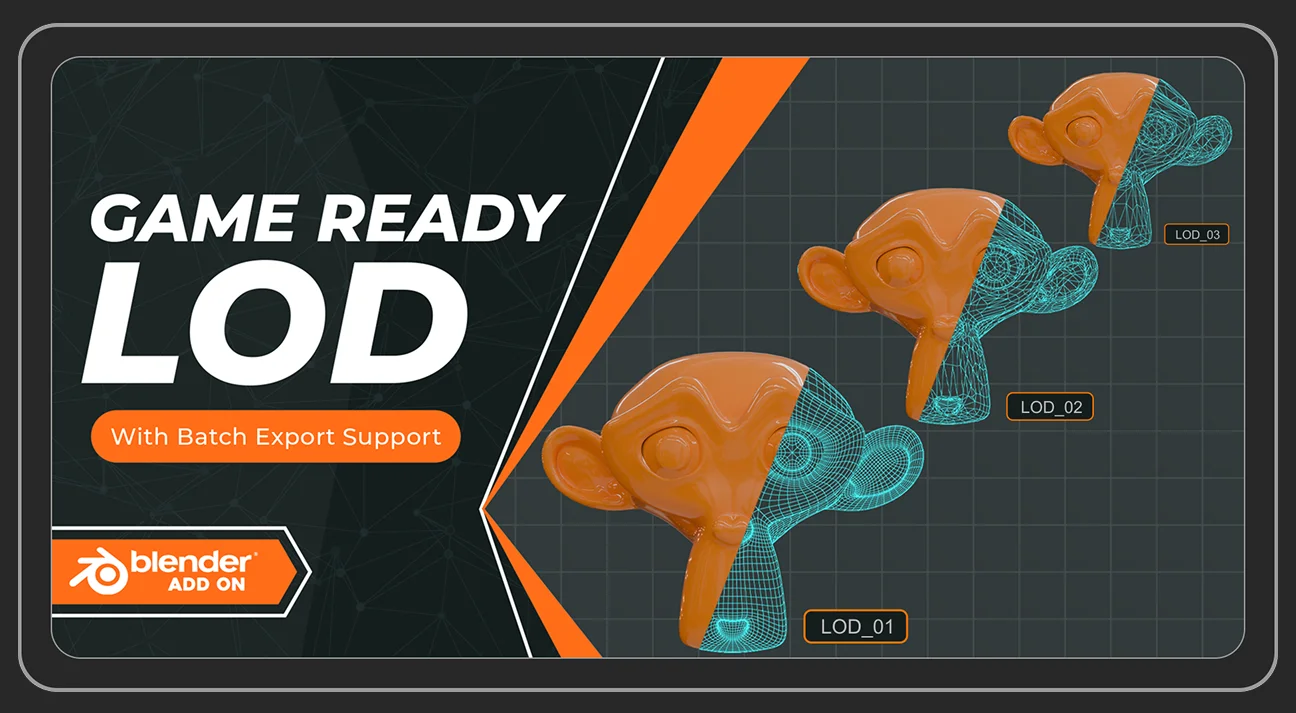
Stop Hand-Building LODs in Blender Generate, Preview, and Export Them in One Panel
Building LODs by hand in Blender is one of those tasks that’s simple in theory and tedious in practice: duplicate the mesh, add a Decimate modifier, eyeball the ratio, rename it, repeat for however many levels you need, then export each one separately and hope the naming convention your engine expects actually matches what you typed. On an asset pack with dozens of props, that workflow eats an afternoon that has nothing to do with actual modeling.
Game Ready LOD exists to fold all of that into one sidebar panel. Select your mesh, set how many LOD levels you want and how aggressively they should decimate, and the add-on builds the whole chain, lets you scrub through it live in the viewport, and batch-exports the result straight to FBX organized into collections your engine’s import pipeline will actually recognize.
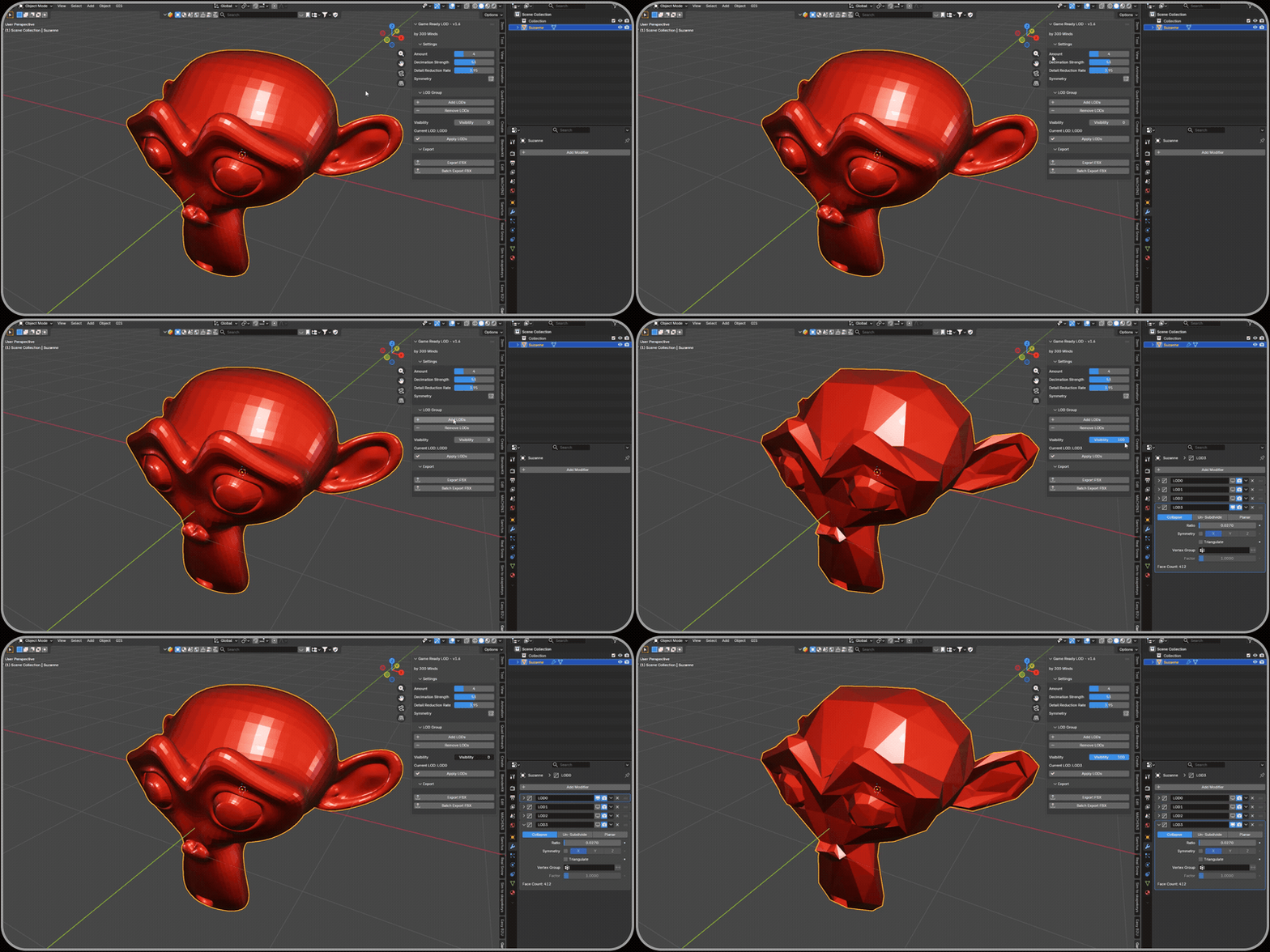
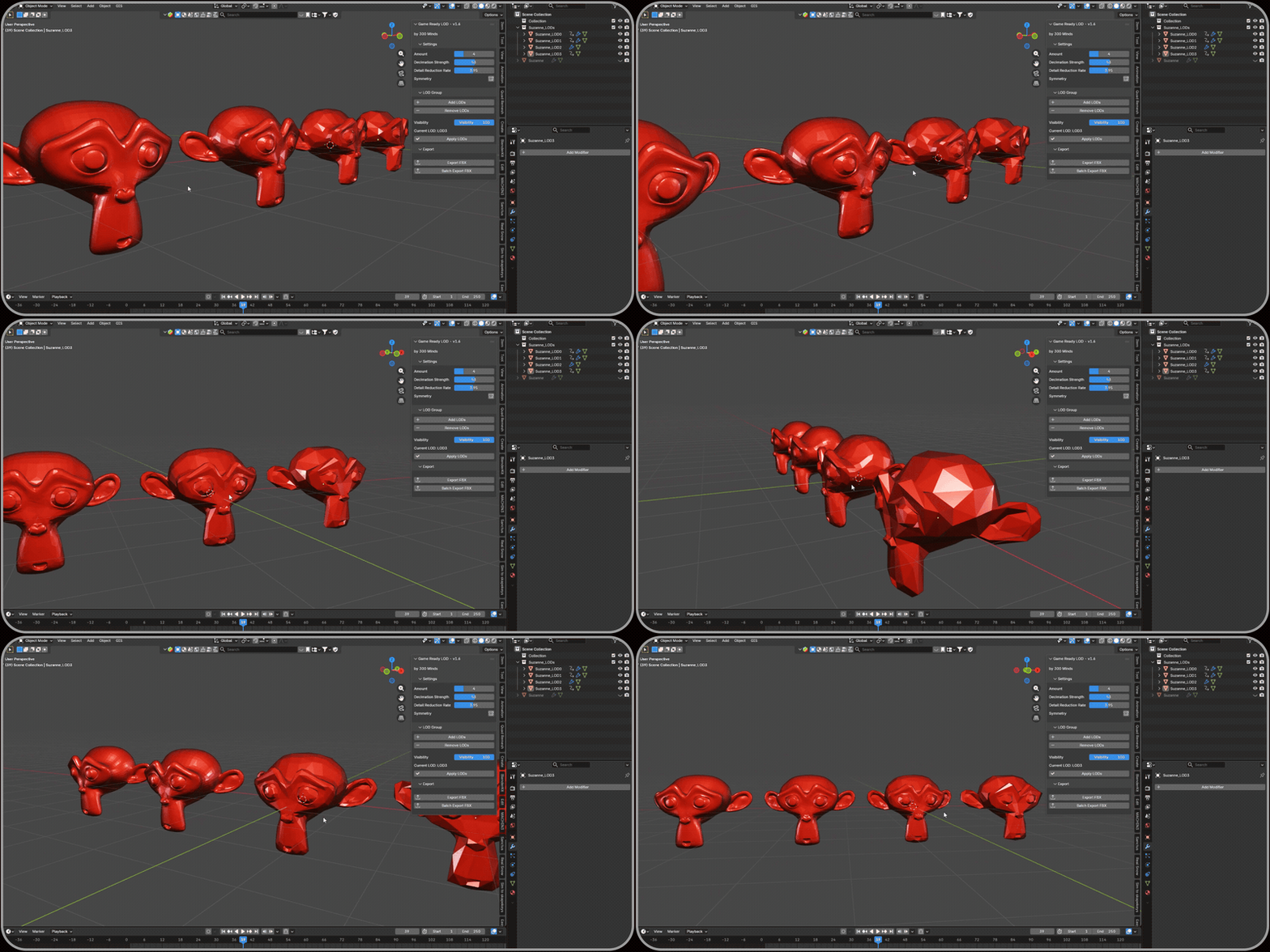
Automatic Multi LOD:
The Core Workflow: Four Steps, Not Four Tools
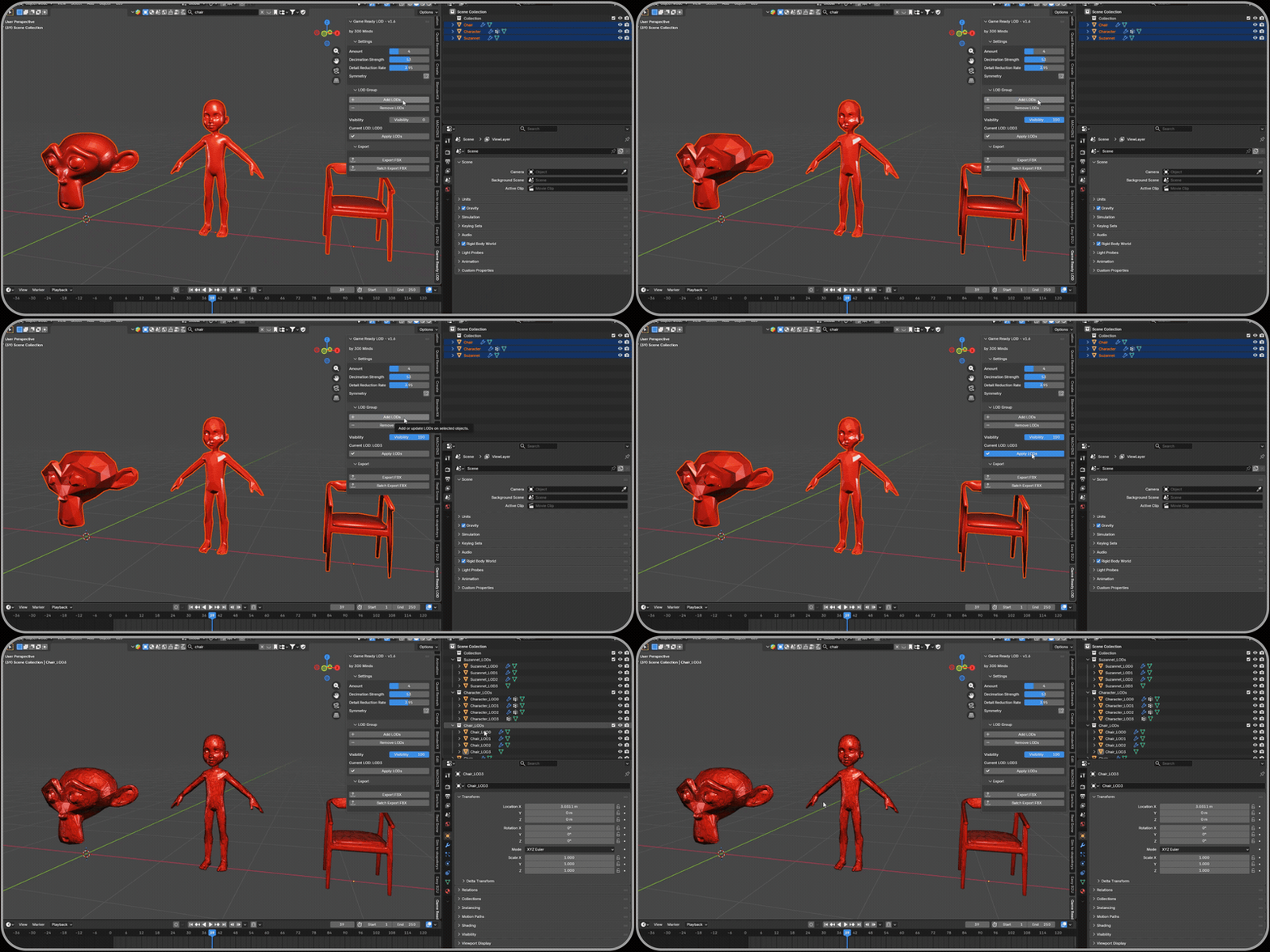
Everything happens from a single tab in Blender’s 3D Viewport sidebar (press N to open it, then find the Game Ready LOD tab). The whole pipeline breaks down into four operations:
- Add LODs generates a set of Decimate modifiers on the selected mesh(es) based on your settings, without touching the original geometry.
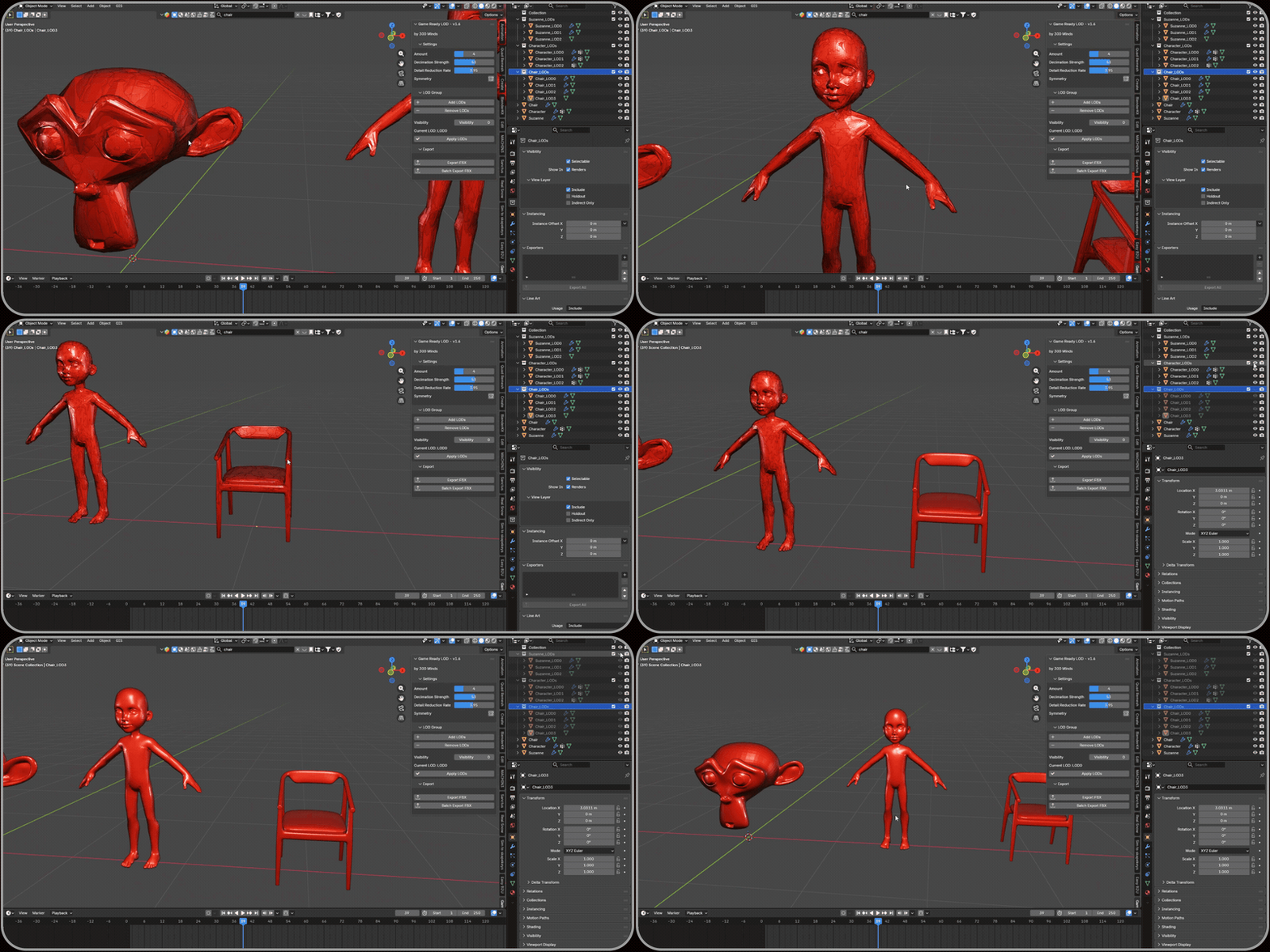
- Adjust Visibility a single slider scrubs between LOD levels in the viewport, syncing the modifier stack selection as you go so you can inspect exactly what each level is doing.
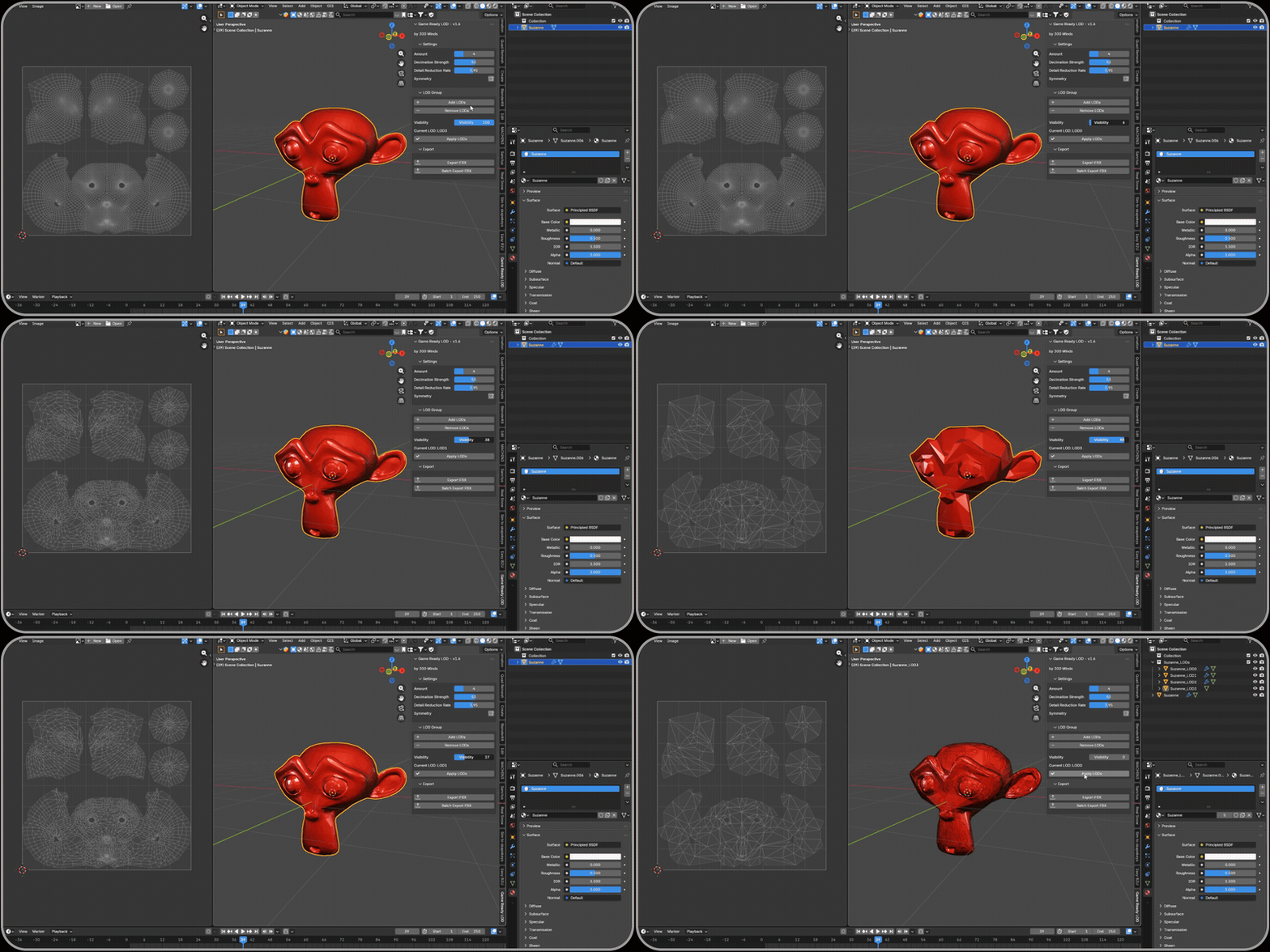
- Apply LODs converts each previewed level into its own separate object, automatically organized into a new collection.
- Export FBX / Batch Export FBX pushes selected objects, or entire collections at once, out to FBX using Blender’s own exporter under the hood.
Clean Mesh Optimization:
Preserves UVs, Materials, Vertex, Normals:
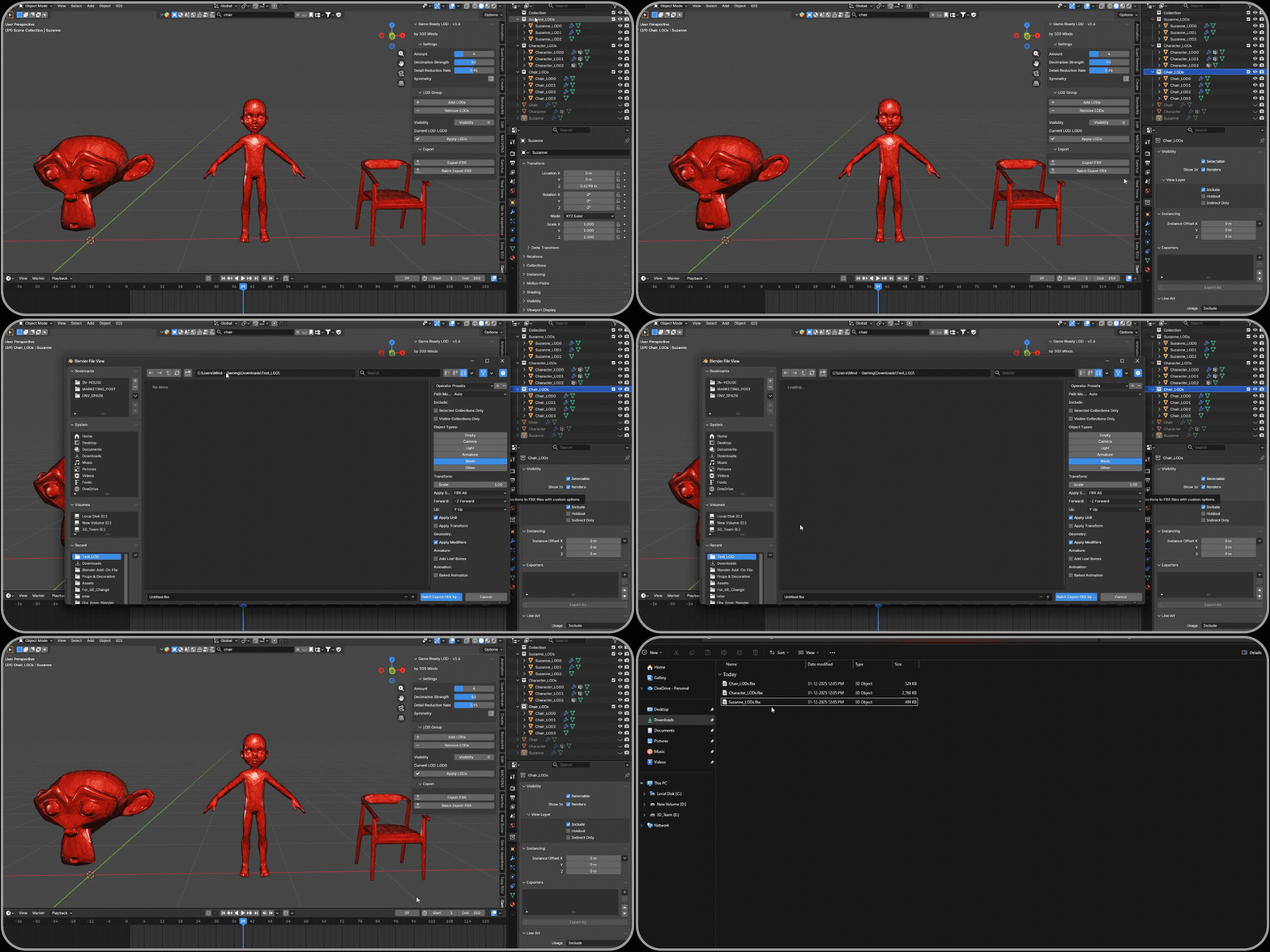
Batch Processing:
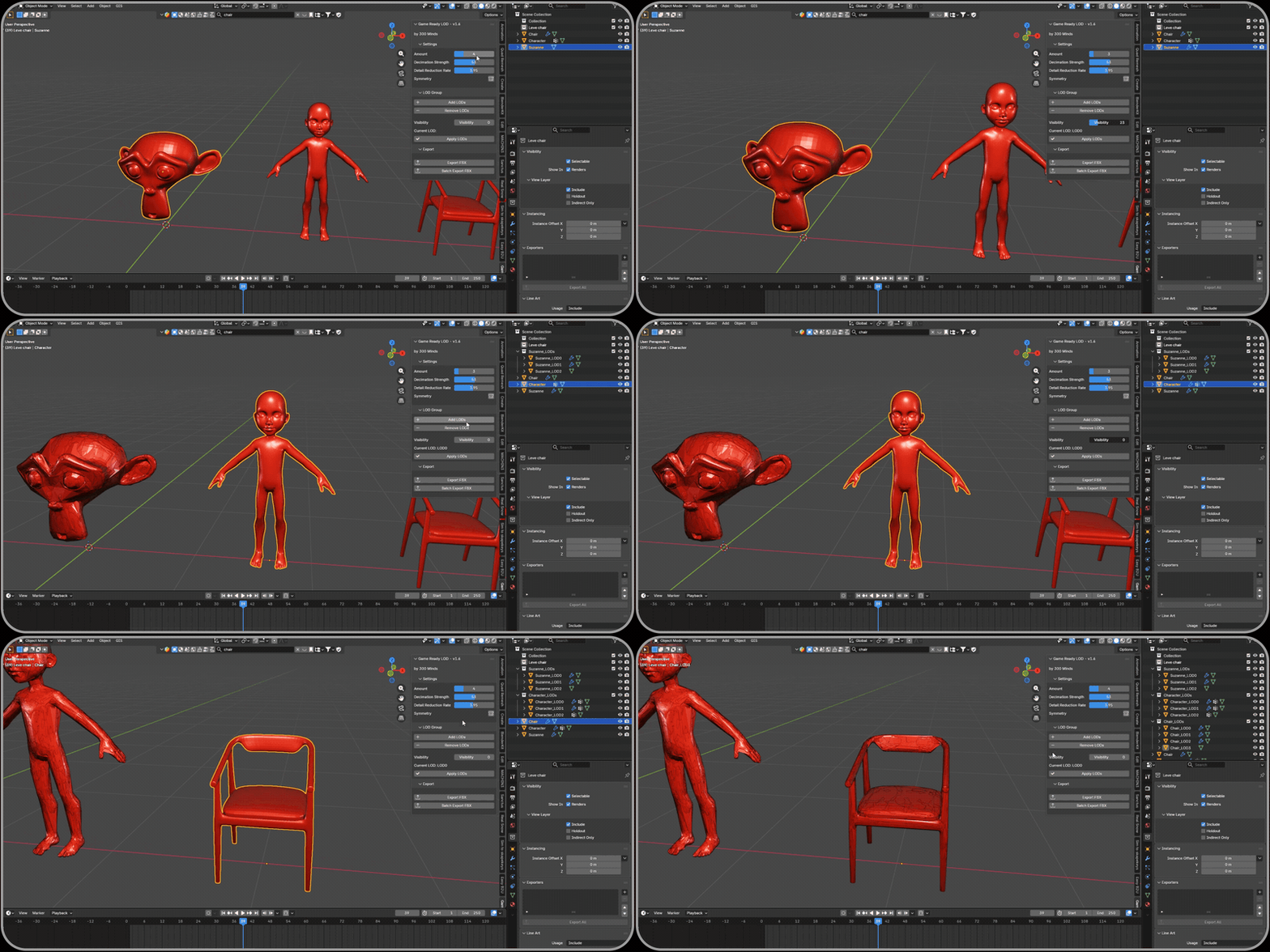
Supports Props:
Engine Friendly:
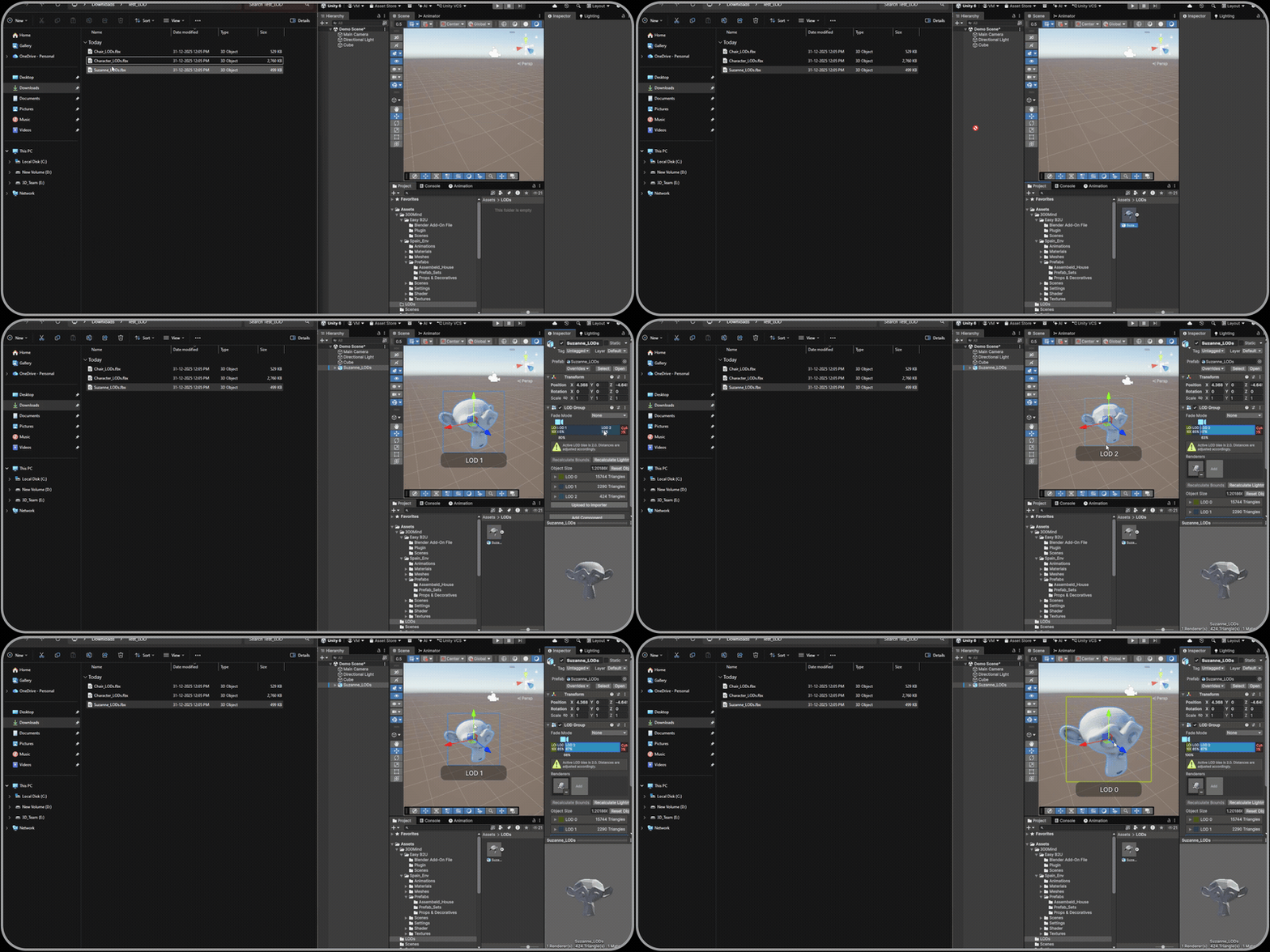
Lightweight, Fast, Native to Blender:
The Settings That Actually Shape Your LOD Chain
Four settings control how the LOD chain is generated, and they’re worth understanding rather than leaving on defaults, since they directly determine how aggressive your lowest LOD ends up being:
| Setting | What It Controls | Range |
| Amount | Number of LOD levels to generate | 2 to 10 |
| Decimation Strength | Overall strength of decimation applied to lower LODs | 1 to 100 |
| Detail Reduction Rate | Shape of the decimation curve across levels | 2.0 to 6.0 |
| Symmetry | Preserves symmetry during decimation for symmetrical models | on / off |
The distinction between Decimation Strength and Detail Reduction Rate is the one people usually gloss over, but it matters: Strength sets how hard the lowest LOD gets hit overall, while the Reduction Rate curve decides how that reduction is distributed across the levels in between. A low reduction rate front-loads detail loss early; a higher one keeps the middle LODs closer to full detail and saves the aggressive cuts for the last level or two. If your LOD1 already looks too rough, it’s the curve you want to adjust before you touch Strength.
It’s Non-Destructive by Design
This was a deliberate choice: Apply LODs never touches your original mesh. It creates new objects for each level and drops them into a fresh collection named after the source object with a _LODs suffix, while the original keeps its modifiers intact and untouched. That means you can regenerate, tweak settings, and re-apply as many times as you want without ever risking the base asset the kind of thing that matters a lot more once you’re forty props deep into a pack and don’t want a bad decimate setting silently baked into your source files.
Batch Export: Where the Time Actually Gets Saved
Exporting one object is straightforward select it, hit Export FBX, done. The bigger time saver is Batch Export FBX, which takes every collection you’ve generated and exports each one as its own FBX file in a single pass, named after its collection automatically.
The batch export panel gives you the same controls you’d expect from Blender’s native FBX exporter, just scoped to run across collections instead of one object at a time:
- Selected Collections Only restrict the batch to whatever you’ve selected in the Outliner, rather than exporting everything in the scene.
- Visible Objects Only skip hidden objects during export.
- Object Types, Transform, Geometry, Armature, and Animation settings the same configuration surface as Blender’s standard FBX export, just applied consistently across the whole batch.
For an asset pack with a dozen props each needing three or four LOD levels, that’s the difference between one export pass and forty individual ones.
A Few Things Worth Knowing Before You Start
- Mesh objects only other object types are ignored by the add-on entirely, so don’t expect it to touch curves, armatures, or empties in a selection.
- Animated meshes need care LODs can be added to animated objects, but decimation can affect animation data, so test the result before relying on it in production.
- Naming is automatic, not custom generated LOD objects and collections are named from the source object plus a suffix; renaming beyond that is a manual step after generation, at least for now.
- Watch for conflicting modifiers if a mesh already has modifiers that interact awkwardly with Decimate, that can throw off the LOD results, so it’s worth checking the modifier stack on anything that behaves unexpectedly.
Why We Built the Export Around Collections
A lot of LOD tools stop at generating the geometry and leave export as an afterthought you’re back to manually selecting objects and running Blender’s exporter yourself, once per LOD set. We built the whole thing around collections specifically so that generation and export share the same organizational unit: once your LODs are applied, the collection they’re grouped into is also the exact thing you hand to Batch Export FBX. No renaming, no manual grouping step in between the structure the add-on creates is already the structure you export.
Get Game Ready LOD
Live now on Superhive built for any Blender-to-game-engine pipeline that needs LODs generated and exported fast.
Browse our full catalog: