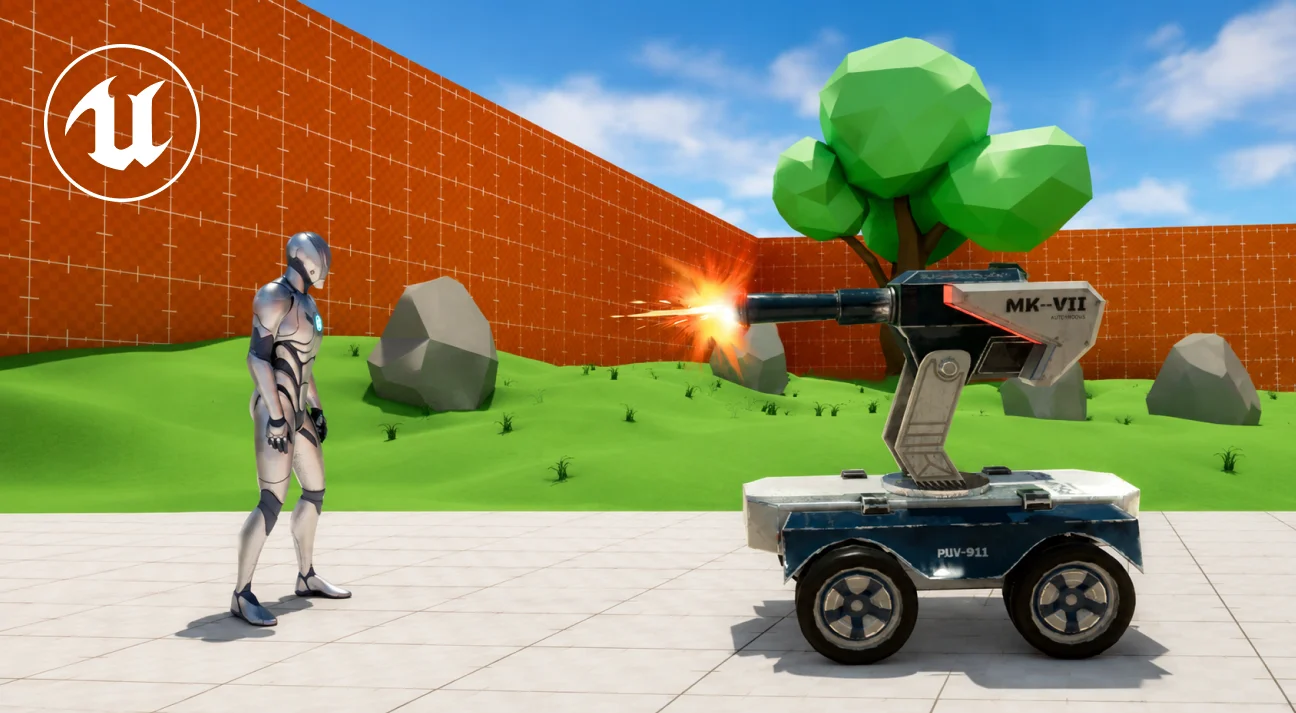
How to Create an AI Turret in Unreal Engine 5
You probably have watched all available YouTube videos to create AI turret system for game development or you’re just beginning to design one. If you have started building AI turret system, there are chances that your turret still shoots through walls. Or you’re wondering how to make an AI turret system for your game.
You’re not sure if the problem is AI Perception, your collision channels, or something you missed entirely in the Team Agent Interface setup.
If that’s where you’re at, you’re not missing anything obvious, you’re just missing the parts nobody explains in one place.
This guide covers what makes a turret “AI” in Unreal Engine 5: detection, memory, patrol behavior, target prioritization, team logic, weapon systems, and the collision setup that trips up almost everyone on their first attempt.
By the end, you’ll know exactly which system is responsible for which behavior, so when something breaks, you’ll know where to look instead of guessing.
And if you get to the end and decide you’d rather not build all of this from scratch, there’s a faster path, and we’ll show you exactly where it fits.
Core Components of an AI Turret System in Gaming
An AI turret is more than an automated weapon, it combines multiple gameplay systems that work together to detect threats, engage targets, and respond to combat events. Whether you’re building a stationary defense tower, a security gun, or a military turret using Unreal Engine services, these five components form the foundation of a reliable AI turret system:
Detection System
The detection system determines when the turret should become active by identifying enemies within its operational range. In Unreal Engine 5, this is commonly implemented using Sphere Collision, AI Perception, or line traces, depending on the project’s complexity.
Beyond simply detecting nearby actors, the system filters valid targets based on factors such as team affiliation, collision channels, visibility, and attack range. A well-configured detection system minimizes unnecessary processing while ensuring the turret responds only to intended enemies.
Target Selection
Once multiple enemies enter the detection area, the turret must decide which one to attack. The target selection system evaluates all valid actors and applies predefined prioritization rules.
Depending on the gameplay design, the turret may target:
- The nearest enemy
- The first enemy detected
- The highest-threat target
- The enemy with the lowest health
- A player-controlled character over AI opponents
A robust targeting system also verifies that the selected target remains alive, visible, and within range before continuing the attack sequence.
Rotation and Tracking
After selecting a target, the turret continuously rotates to maintain accurate aim. Rather than snapping instantly toward an enemy, Unreal Engine typically uses interpolation techniques to create smooth, mechanical movement that feels more natural.
Most turret systems separate movement into two axes:
- Yaw for horizontal rotation of the turret head
- Pitch for vertical adjustment of the weapon barrel
This allows the turret to track moving targets with greater precision while respecting rotation limits and maintaining realistic motion.
Firing Logic
The firing logic controls when and how the turret attacks. Once the target is aligned and all firing conditions are met, the system executes the weapon behavior.
Depending on the game’s requirements, the turret may use:
- Projectile-based weapons
- Hitscan weapons
- Burst-fire modes
- Continuous laser beams
- Rockets or explosive ammunition
This component also manages gameplay variables such as fire rate, cooldown timers, reload duration, projectile speed, ammunition limits, and attack intervals to create balanced combat behavior.
Damage System
The damage system handles the interaction between the turret and its targets after a successful hit. It applies damage values, updates health, triggers hit reactions, and processes enemy elimination.
In addition to combat calculations, this system often activates visual and audio feedback, such as impact particles, sound effects, destruction animations, score updates, and gameplay events. A well-integrated damage system ensures that every successful attack produces immediate and meaningful feedback for the player.
Step-by-Step Process to Build an AI Turret for a Game Using Unreal Engine 5
Here’s the practical process to configure all key AI turret components to work well in the game:
Step 1: Block Out the Turret Structure
Before writing any gameplay logic, establish a clean modular hierarchy for the turret. Separate the Base, Turret Head, Weapon Barrel, and Muzzle Socket into individual components. The base should remain stationary while the head rotates along the yaw axis and the barrel adjusts its pitch independently.
At this stage, also expose configurable variables such as rotation speed, detection radius, fire rate, projectile class, and maximum attack range. Organizing the hierarchy early makes future weapon swaps and gameplay balancing significantly easier.
Step 2: Setting Up AI Perception and Detecting the Player
This is the single most common failure point in beginner setups: the perception component is configured perfectly, and the turret still never reacts, because the target was never registered as a stimuli source in the first place.
If your turret can’t see a player who’s standing directly in front of it, check this before anything else.
Three settings determine how “sharp” your turret’s vision feels, and beginners usually only tune one of them:
- Sight Radius: max distance to notice a target for the first time
- Lose Sight Radius: max distance to keep seeing a target it’s already noticed (this should be larger than Sight Radius, or your turret will lose track of anything that takes one step back)
- Peripheral Vision Half Angle Degrees: how far to the side the turret can see, measured from its forward vector
Get these three out of sync and you get a turret that looks “twitchy,” noticing and losing the player repeatedly instead of tracking smoothly.
How do I make a turret automatically shoot when it sees a player?
Once your perception component fires On Target Perception Updated, that event is your trigger. Bind your firing logic or a state change into a “targeting” mode, to that event rather than polling for line-of-sight every tick. It’s cheaper, and it matches how Unreal expects AI perception to be consumed.
Epic’s own documentation on the AI Perception system covers the full sense configuration if you want the engine-level reference alongside this practical walkthrough.
Step 3: Build Smooth Tracking and Rotation
Rather than snapping instantly toward an enemy, interpolate the turret’s rotation for smoother movement.
Calculate the Look At Rotation toward the target and gradually blend the turret head’s yaw and the barrel’s pitch until both align with the enemy. Limiting rotation speed and angle constraints produces more believable mechanical movement while preventing abrupt direction changes.
This stage transforms a static prop into an active defensive system.
Step 4: Movement Behavior: Patrol, Radius Search, and Investigate
Patrol Type governs how a turret moves between waypoints when it isn’t actively engaging a target:
- Sequence moves through patrol points in the order you assigned them
- Random picks the next point at random each time
Radius Type patrol keeps the turret within a defined area around a Search Center. When a target leaves that radius, the turret pursues only as far as the edge allows, using an Offset value to stay slightly inside the border rather than hugging it exactly, which matters because a turret camped right on the boundary line looks broken, not smart.
Investigate Type is the one most tutorials skip entirely. It’s the only movement behavior that responds to sound. When a target calls a Report Noise event, the turret travels to that location and patrols it a set number of times before resuming normal behavior and if the position is unreachable, it simply ignores the noise rather than getting stuck. Loudness values matter here: keep them in the 1–5 range, since very high loudness values can be heard even outside the turret’s normal hearing range, which is useful for scripted “alert” moments but easy to overuse by accident.
Why doesn’t my turret react to sound?
Check two things: that Hearing is configured under AI Perception Senses Config on the controller, and that the Report Noise event’s loudness value isn’t set so low it falls under the turret’s Hearing Range threshold.
Step 5: Fixed-Fire vs. Tracking-Fire Modes
This is a design decision as much as a technical one. Tracking turrets feel more “alive,” but tune the sight and lose-sight radii wrong, and players will feel like the turret cheats, because it never loses them once acquired.
Fixed-Fire turrets are more predictable and easier for players to read and counter, which is exactly why they’re the standard choice for tower-defense and horde-mode layouts.
Expose gameplay variables including:
- Fire Rate
- Burst Count
- Projectile Speed
- Reload Duration
- Damage Value
- Weapon Type
Separating the firing logic from the turret itself allows multiple weapon attachments to reuse the same AI framework.
If this is your first AI turret build, start with Fixed-Fire. It removes one axis of tuning while you’re still getting perception and collision dialed in.
Step 6: Attachments: Guns, Rockets, Lasers, Mines, and Bombers
Unreal Engine 5 turret attachments generally fall into six categories: Gun, Rocket Launcher, Grenade Launcher, Bomber, Laser Shooter, and Mine Placer, each with its own damage model, projectile behavior, and setup complexity.
| Attachment | Best For | Setup Complexity |
| Gun (Single/Burst/Auto) | Standard combat, tunable fire rate | Low–Medium |
| Rocket Launcher | Homing damage, area denial | Medium (homing magnitude tuning) |
| Grenade Launcher | Arc-based area damage | Medium |
| Laser Shooter | Continuous/ramping damage, sci-fi tone | Medium–High (damage curve tuning) |
| Bomber | Rush-and-detonate enemy type | Medium (collision sphere + timer) |
| Mine Placer | Area denial, doesn’t require sight of player | Medium–High (spawn logic + mine types) |
What’s the difference between hitscan and projectile turret weapons?
Hitscan (used by most Gun setups) resolves damage instantly along a trace line the moment the turret fires. Projectile-based weapons (Rockets, Grenades) spawn an actual actor that travels through the world and can be dodged, deflected, or intercepted, more realistic, more expensive to compute, and it needs its own collision and lifespan handling.
Building six attachment types from scratch, each with its own damage falloff curve, projectile override logic, and VFX hookup, is realistically a multi-week job for one artist working solo.
This is the exact gap the Advanced AI Turret Framework is built to close: all six attachment types ship pre-wired, including homing rockets and ramping damage-over-time lasers, so you’re tuning values instead of building systems.
Step 7: Collision Channels: The Step Everyone Skips (and Regrets)
This is the least glamorous part of the whole system, and it’s the one that generates the most frustrated forum posts. The fix is always the same shape:
- Create a custom Trace Channel in Project Settings → Engine → Collision (or reuse an existing one)
- Set that channel in the ShootTrace Channel variable on your Attachment Component
- On your character’s mesh component, set the response to that channel to Block
Skip step 3 and you’ll have a turret that fires convincingly, plays every VFX correctly, and deals zero damage, because the trace never registers a hit. It’s worth using a dedicated custom channel rather than reusing Visibility or Camera, specifically so turret damage traces don’t get interrupted by unrelated collision logic elsewhere in your project.
Step 8: Testing and Debugging Your Turret
Most turret bugs map cleanly to one of four root causes. Before you go hunting through Behavior Trees or perception graphs, check this list first:
| Symptom | Likely Cause |
| Turret never reacts to the player | Missing AI Perception Stimuli Source Component on the target |
| Turret notices and loses the player repeatedly | Lose Sight Radius is set too close to Sight Radius, or Peripheral Vision angle is too narrow |
| Turret fires but deals no damage | ShootTrace Channel not set, or target mesh not set to Block that channel |
| Turret ignores sounds entirely | Hearing not configured in Senses Config, or Report Noise loudness value too low |
| Turret patrol looks stuck at the edge of its area | Radius Search Offset not set, or Search Radius too small for the space |
This table alone will resolve the majority of first-time AI turret bugs, so bookmark it.
Build It Yourself vs. Use a Pre-Built AI Turret Framework
By now you’ve seen what a genuinely complete AI turret system requires: a perception layer, a C++ team interface, three movement behaviors, six weapon attachment types with their own damage models, and collision setup that has to be exactly right or nothing works. None of it is conceptually hard on its own. Getting all of it working together, tested, and tuned is what actually costs the time.
If you’re building this for a single prototype turret, doing it by hand is a reasonable way to learn the systems and everything above should get you there. If you need multiple turret variants, team-based combat, and six weapon types working reliably across a real production timeline, then pre-built AI turret framework becomes useful.
Final Tips
If this is your first AI system in Unreal Engine 5, don’t start with every feature turned on at once. Build in this order:
- Fixed-Fire mode, not Tracking-Fire: fewer tuning variables while you’re still learning perception
- Sequence patrol, not Radius Search: predictable behavior is easier to debug
- One Gun attachment before you touch Rockets, Lasers, or Mines
- Confirm collision damage works before you add a second attachment type
Get that baseline working end to end, then layer in complexity one system at a time. Every bug becomes obvious when you know which of the four systems: perception, team logic, movement, or collision, is responsible for it.
Why Use 300Mind’s AI Turret System
At 300Mind, we’ve built advanced AI Turret Framework that brings all these systems together into a production-ready Unreal Engine 5 plugin, helping you skip weeks of development and focus on gameplay.
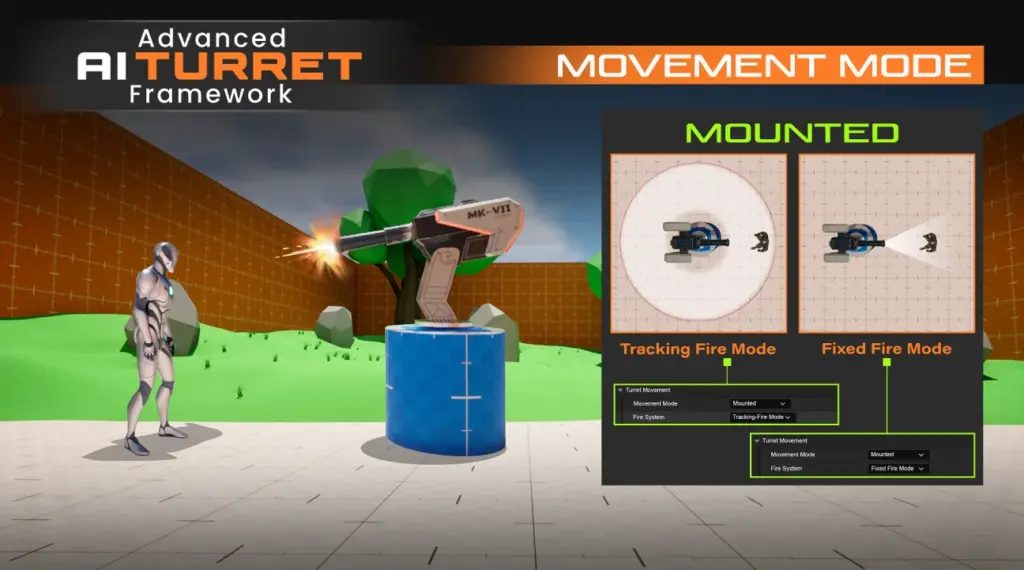
300Mind’s advanced AI turret system includes everything covered in this guide, already built and tested:
- AI Perception and Stimuli Source setup, the C++ Team Agent Interface implementation,
- All three movement behaviors (Sequence/Random patrol, Radius Search, Investigate),
- Fixed-Fire and Tracking-Fire modes
- All six attachment types including homing rockets and damage-curve lasers
- The collision channel wiring that normally costs beginners the most debugging time.
You set parameters in the details panel and drag the turret into your level and the systems underneath are already correct.
With support for Unreal Engine 5, complete documentation, a playable demo, and modular architecture, it’s designed to help developers prototype faster and ship with confidence.